



NewSmart Names with Apple Intelligence, on your Mac

Find any file on your Mac.
Just describe it.

TidyFind turns your Desktop, Downloads and Documents into one searchable library. Type what you remember and the file appears, even when the only clue is a word inside a screenshot. Then it keeps everything tidy.

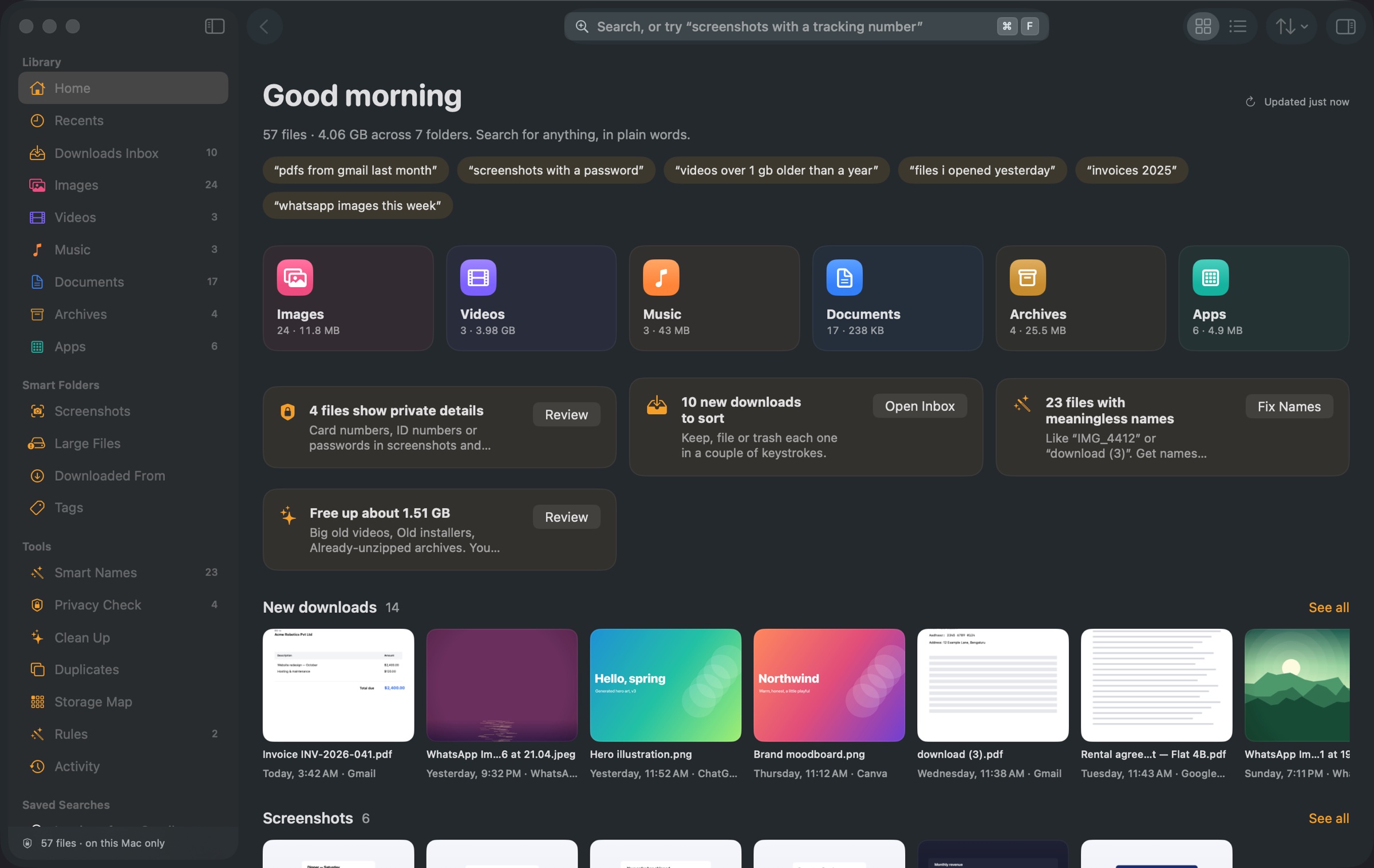
TidyFind's Home screen: a sidebar of file categories, tiles for images, videos, music, documents, archives and apps, and shelves of new downloads and screenshots.

Remembers where every download came from

Smart Names

“IMG_4412.HEIC” becomes “Goa sunset”.

TidyFind reads what's inside screenshots, photos and PDFs and suggests names you'll actually recognise, like “Invoice INV-2026-041 Acme Robotics” instead of “download (3).pdf”. On Macs with Apple Intelligence the names come from Apple's on-device model, so nothing is uploaded. You approve every name, and it's all undoable.
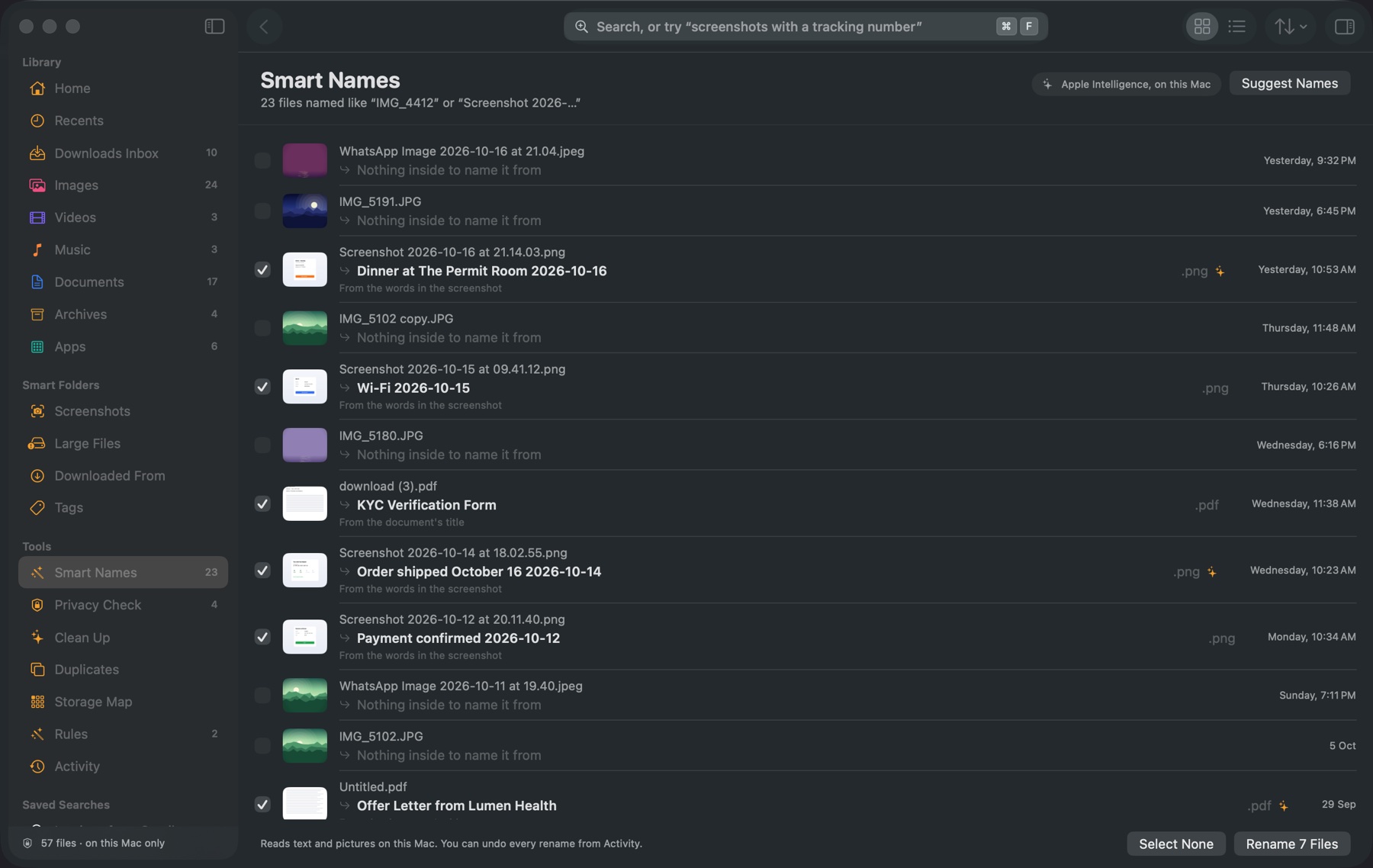
Smart Names: a list of messy file names with clear suggested names beside each one.

Privacy Check

Find the ID cards and passwords you forgot about.

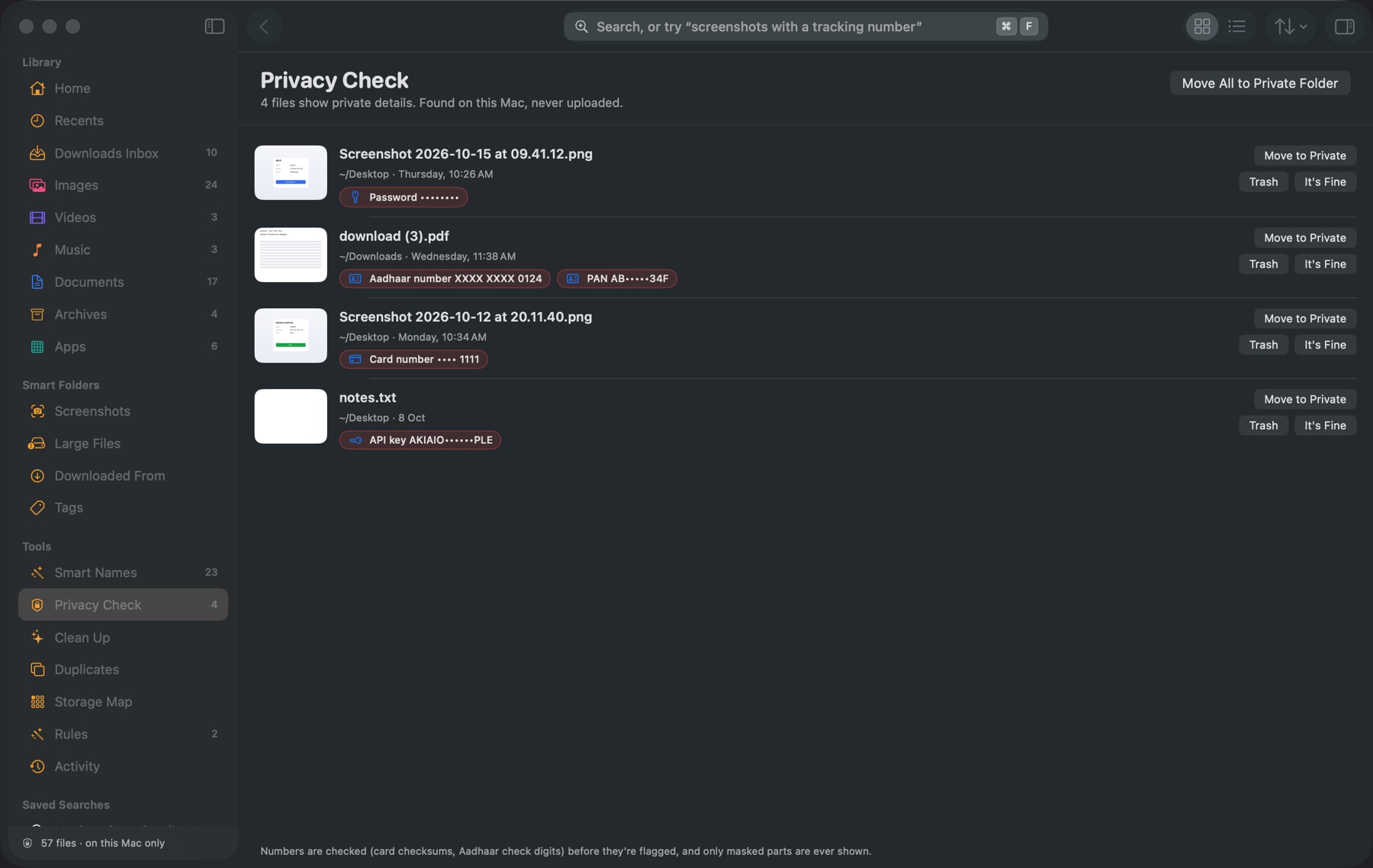
That screenshot of a card payment. The KYC form with your PAN and Aadhaar. The note with an API key. TidyFind spots card numbers, ID numbers, bank details, passwords and keys in screenshots, PDFs and notes, and helps you move them somewhere safe. Numbers are checked before they're flagged, and only masked parts are shown.

Privacy Check listing files that show a card number, PAN, Aadhaar number, password or API key, each masked.

Text in images

The words inside your screenshots, found.

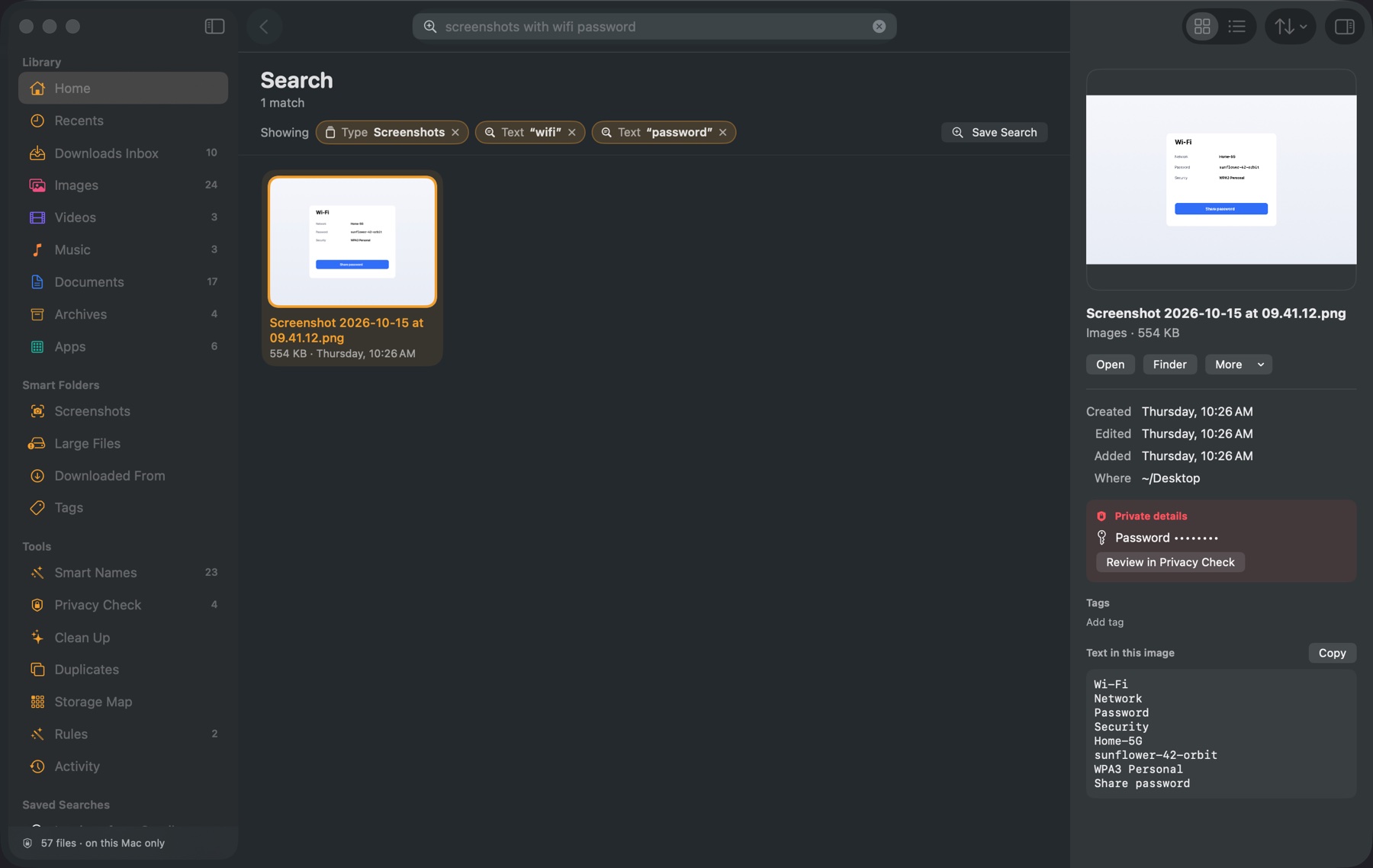
TidyFind reads the text in screenshots, photos and scanned PDFs, on your Mac. Search for the Wi-Fi password you screenshotted months ago, then copy it straight out of the image with ⇧⌘C.

Searching “screenshots with wifi password” finds one screenshot, and the inspector shows the text TidyFind read from it.

Downloads Inbox

Your Downloads folder, finally under control.

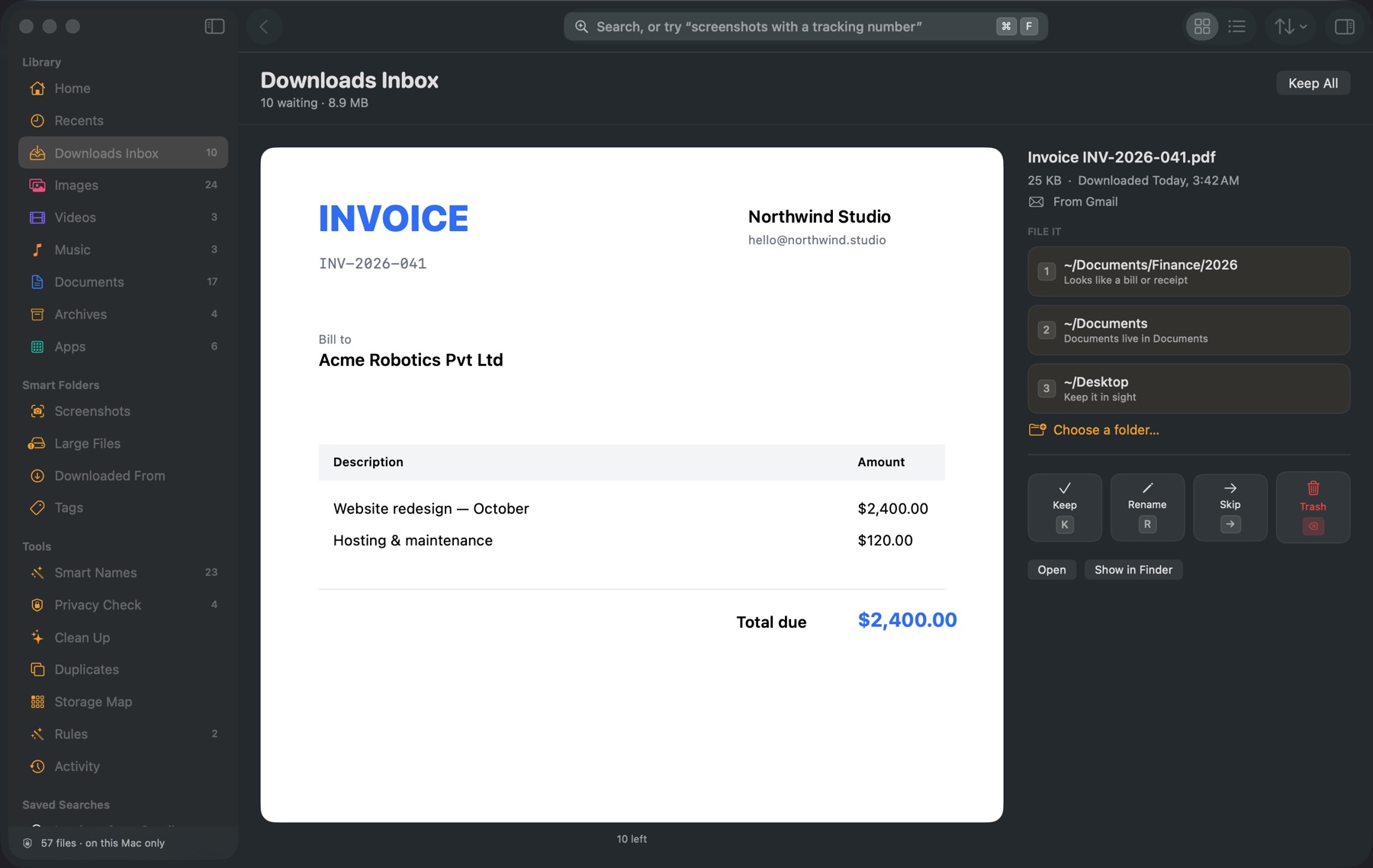
Each new download waits for a quick decision, with a big preview. Press 1 to file it where TidyFind suggests, K to keep it or ⌫ to trash it. TidyFind learns where you put things, so the next invoice already knows its folder.

The Downloads Inbox showing an invoice from Gmail with a large preview and suggested folders numbered 1 to 3.

Rules

Tidy-up rules, written in plain English.

Describe the files the way you'd search for them, then choose what happens: move, tag, rename or trash. File screenshots into a folder for each month, or clear out installers a week after you download them. You see exactly which files a rule will touch before you switch it on.

The Rules screen with rules such as “File screenshots by month” and “Trash old installers”, each with an on/off switch.

Clean Up

Gigabytes back, without the risk.

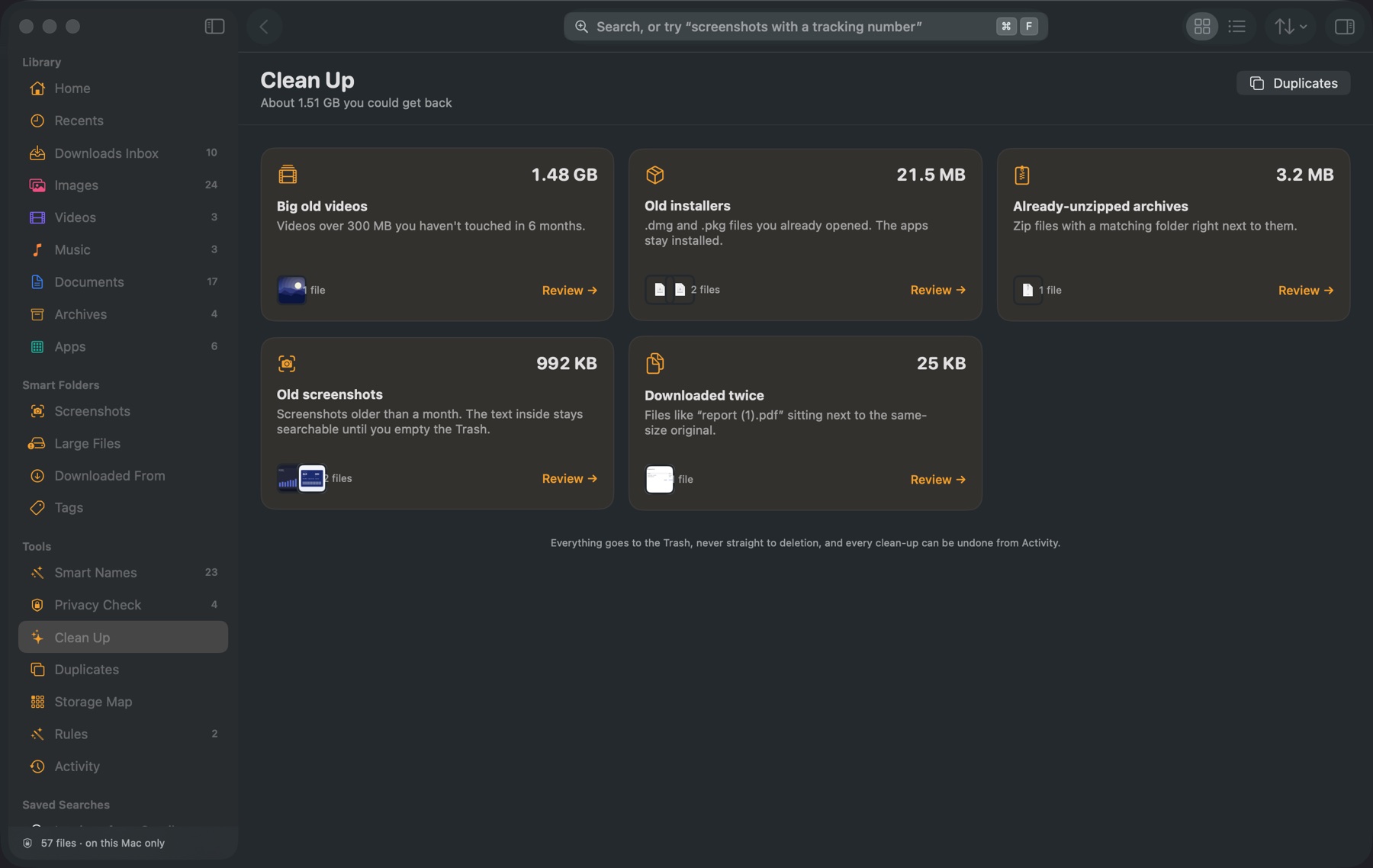
Smart suggestions for big old videos, old installers, zips you already unzipped and files you downloaded twice. You review every file first. Nothing is deleted outright: it all goes to the Trash, and Activity can undo it.

Clean Up suggestions with sizes, such as big old videos, old installers and already-unzipped archives.

Duplicates

One copy is plenty.

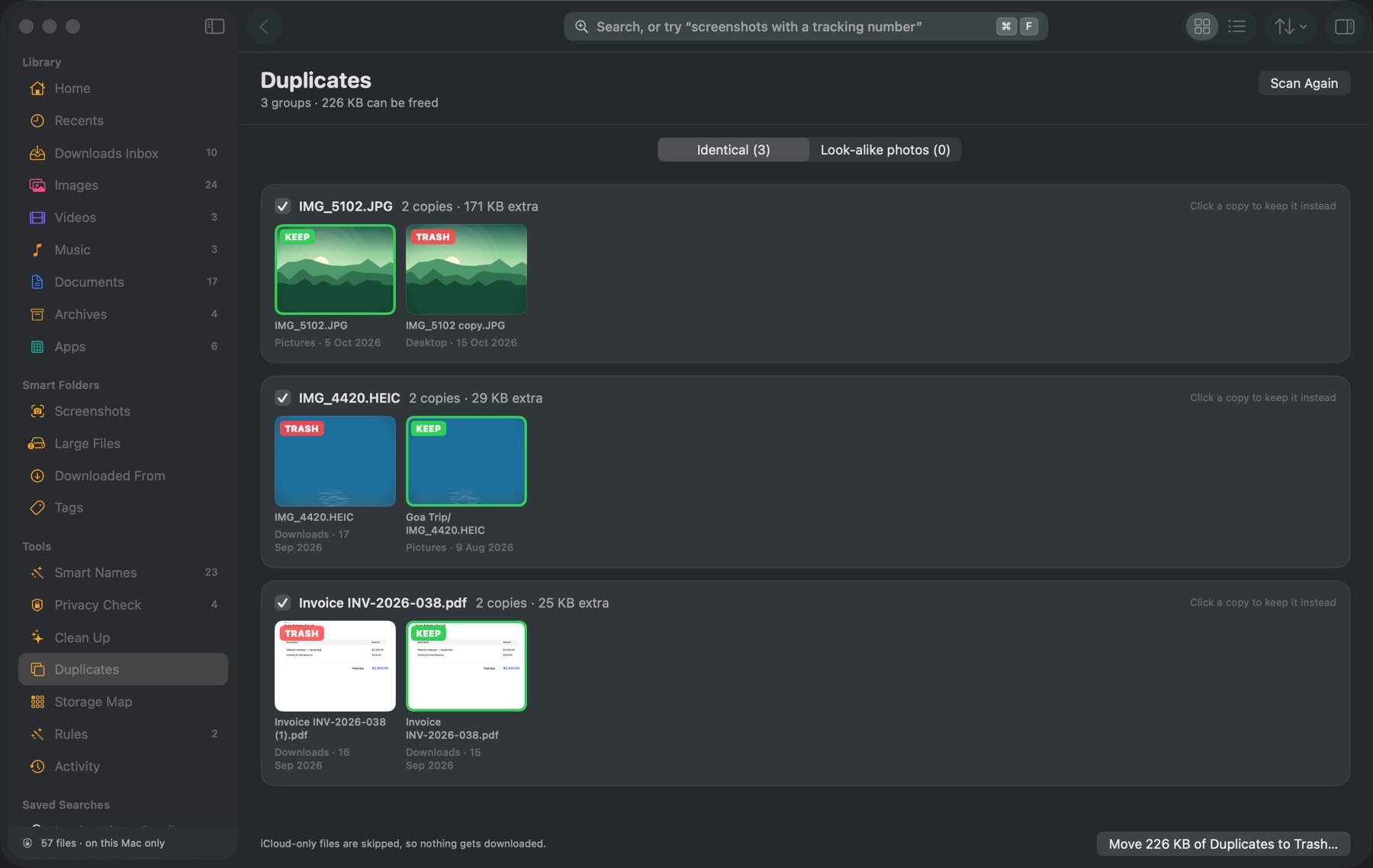
Exact copies are matched by their contents, not their names, and look-alike photos are grouped too. TidyFind picks the copy to keep; click another to change it.

Duplicate groups, each with one copy marked Keep and the others marked Trash.

Storage Map

See exactly where your space went.

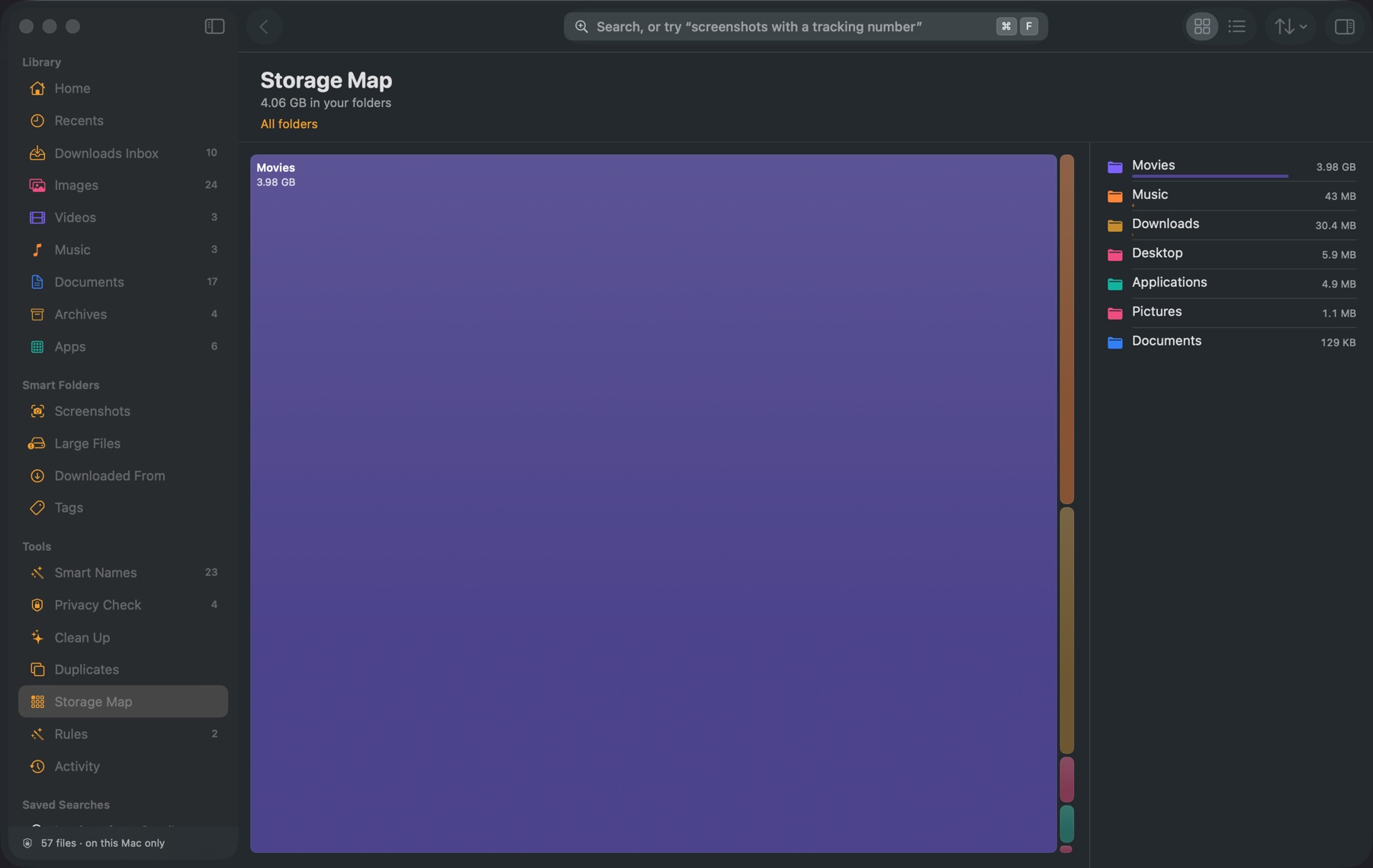
Every folder becomes a block sized by what it holds and coloured by what's inside. Click a block to zoom in until you find that forgotten 2 GB video.

A map of folders sized by storage, with a list of the largest folders beside it.

And all the little things.

The details that make it feel like it was always part of your Mac.

Search from any app

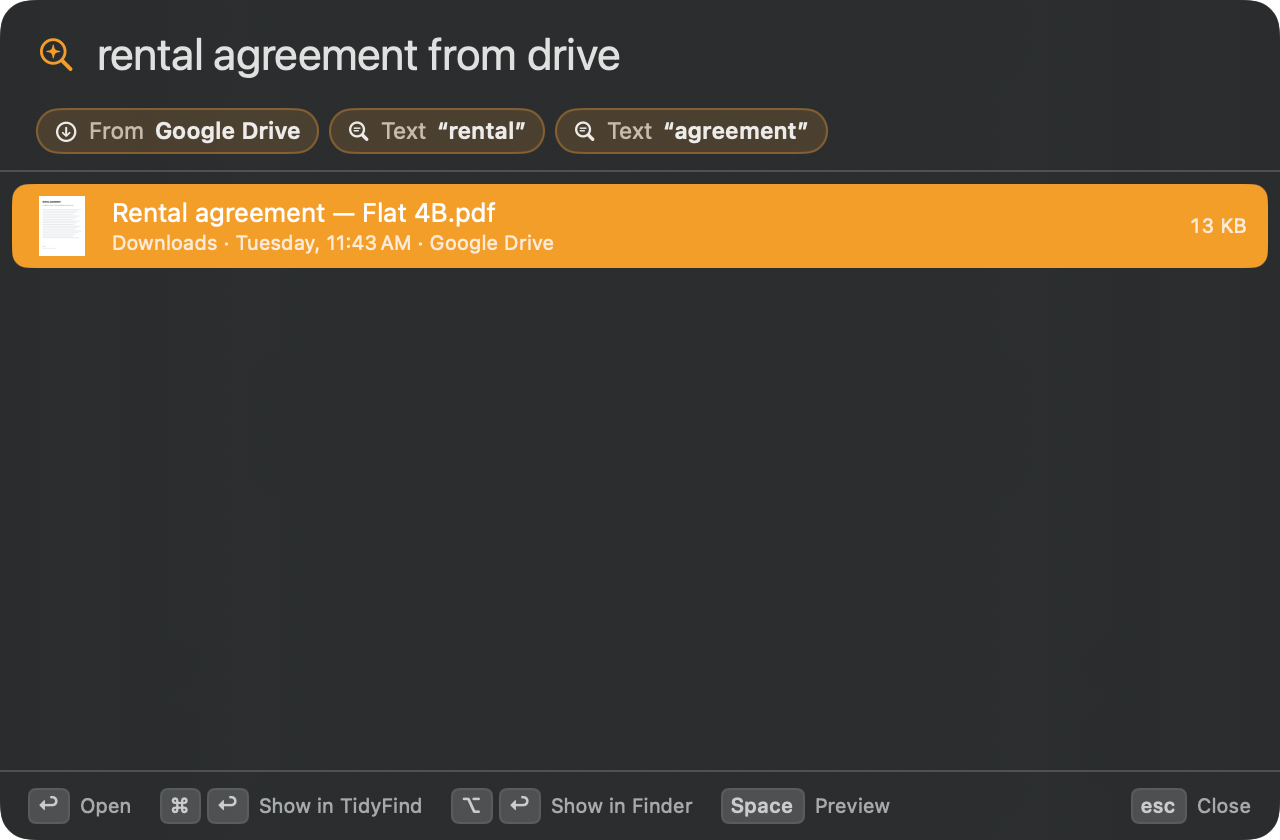
Press ⇧⌘Space wherever you are. A small panel drops in, and ↩ opens the file.

The Quick Search panel finding a rental agreement downloaded from Google Drive.

Downloaded From

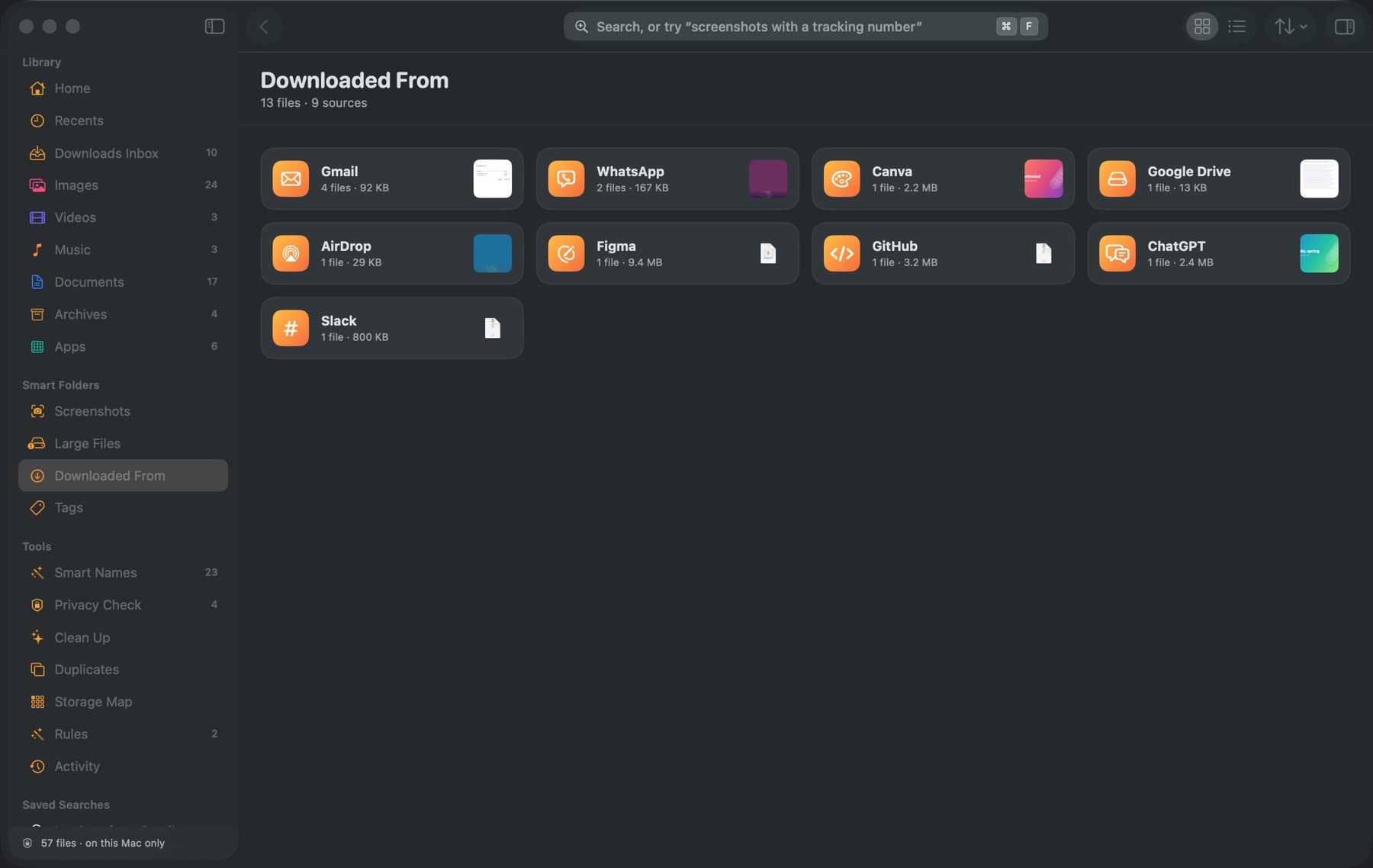
Every download grouped by where it came from. Find the invoice by remembering the email, not the filename.

Downloads grouped by source, such as Gmail, Google Drive, WhatsApp and ChatGPT.

Undo anything

Every move, rename, tag and trash is listed in Activity, including what your rules did.

Rename hundreds at once

Patterns with dates, counters and sources, with a live before-and-after preview.

Search photos by what's in them

Type “beach”, “mountains” or “dog”. Apple's on-device image recognition describes every photo in your folders, even ones called IMG_2214.

Made for developers too

Code projects show up as one tidy item instead of thousands of source files. Clean Up finds node_modules, build caches and virtual environments in projects you haven't touched for a month.

Quick Look and inspector

Press Space to preview. The inspector shows dimensions, camera, source, tags and the text inside.

Light or dark, it fits right in

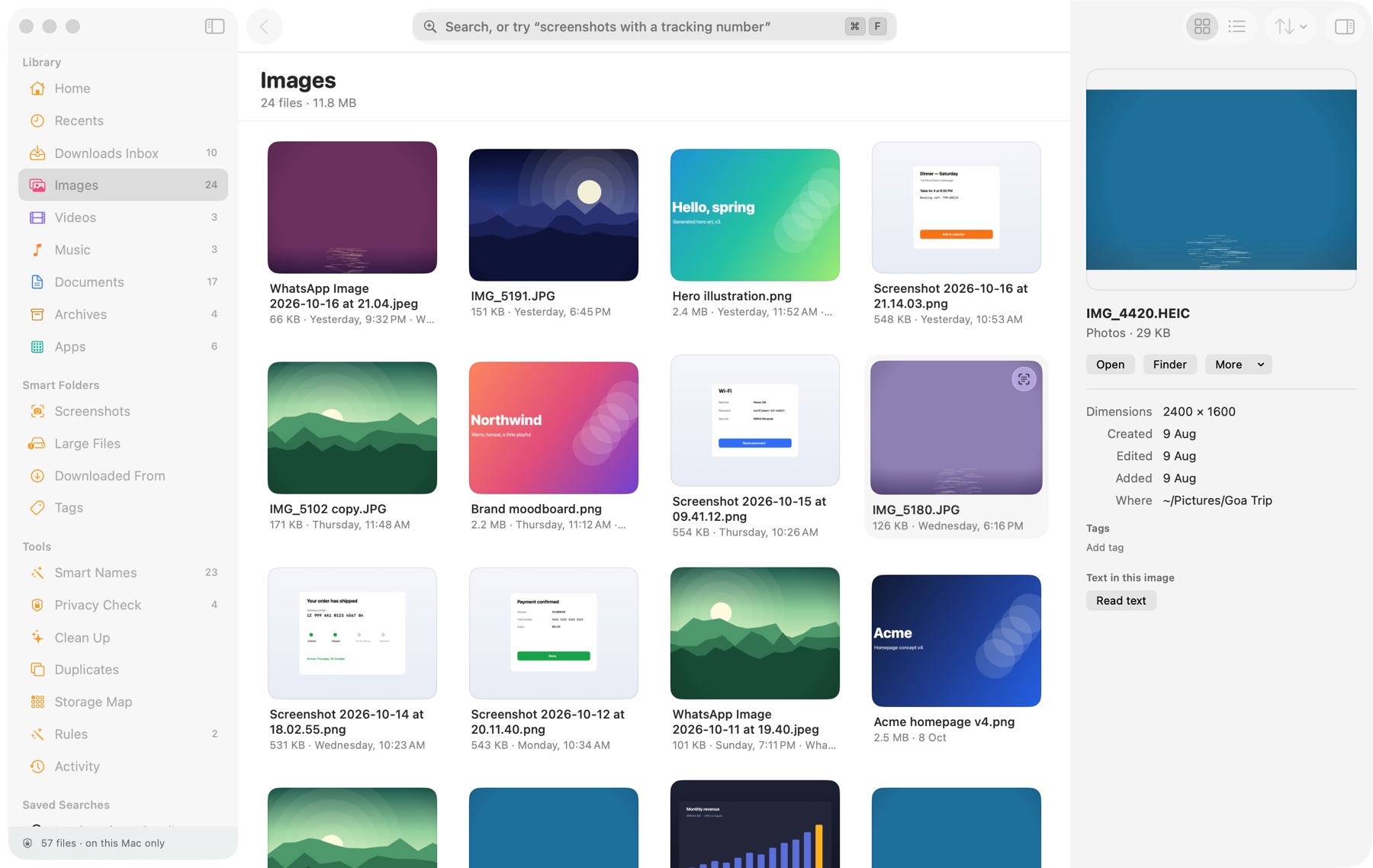
Follows your Mac's appearance. Switch between a colourful look and a calm monochrome one with ⌃⌘T.

TidyFind in light mode showing a grid of photos with the inspector open.

Private by design.

TidyFind can see every file on your Mac, so it was built to keep them there.

  • Runs on your Mac

    Text and photo recognition use Apple's Vision framework, and Smart Names uses Apple Intelligence's on-device model. No account and no uploads.

  • Nothing deleted outright

    Clean Up and Duplicates move files to the Trash, and every change can be undone from Activity.

  • iCloud stays in iCloud

    Files that only live in iCloud are skipped during scans, so nothing gets downloaded behind your back.

  • Two small network calls

    A license check and an update check. Never your files, file names or searches.

Pay once. Yours for life.

Pay once and use it for life. No subscription, no account.

TidyFind

Personal license

$19one-time

  • Every feature, including Smart Names, Privacy Check and Rules
  • Lifetime license, updates included
  • Move your license to a new Mac any time
  • Works offline once activated, on Apple silicon and Intel
Buy TidyFind Already bought? Download

For macOS 14 Sonoma or later. About a 6 MB download. Your license key arrives by email.

Questions, answered.

Does TidyFind replace Finder?

No, it works alongside it. Use TidyFind to find, sort and clean up, and choose "Show in Finder" whenever you want the classic view. Your folders stay exactly as they are unless you move something.

Will it delete my files?

Never outright. Anything you or a rule removes goes to the Trash, and every change is listed in Activity with Undo.

Do my files get uploaded anywhere?

No. Indexing, text recognition and duplicate detection all run on your Mac. Searching inside documents uses the Spotlight index macOS already keeps.

Does Smart Names send my files to an AI service?

No. On Macs with Apple Intelligence (macOS 26 and later), names come from Apple's on-device language model, which runs on your Mac and works offline. On other Macs, TidyFind uses its own built-in rules. Either way, your files and their contents never leave your Mac.

Does TidyFind connect to the internet?

Only for two things, and never with your files, file names or searches. It checks your license key with Dodo Payments, the shop that sells TidyFind, when you activate or deactivate it and about once a week after that. Activating also sends your Mac's name, so you can tell your Macs apart. And it checks for new versions, which you can turn off in Settings. Activation needs a connection once. After that, if you're offline, TidyFind keeps working.

Why does it ask for access to Desktop, Documents and Downloads?

macOS protects those folders and asks once before any app can read them. You can choose which folders TidyFind looks at in Settings, and add others such as an external drive.

What happens with iCloud Drive?

Files on your Mac are indexed as usual. Files that live only in iCloud are listed but never downloaded by a scan.

Is it a subscription?

No. You pay once and get a lifetime license.

Can I move my license to a new Mac?

Yes. On the old Mac, open TidyFind ▸ Settings ▸ License and click Deactivate This Mac. Then enter the same key on the new one.

Which Macs does it run on?

Any Mac with macOS 14 Sonoma or later, Apple silicon or Intel.

Give your files a tidy home.

One payment, every feature, yours for life.